

Introduction
Crafters create ItemAmounts using Blueprints, and add them to the Global Storage solution or directly to an Item Container after the craft time has finished.
Crafters have many options of how they should operate such as repeating crafting, a crafting queue, or only being able to select from a group of Blueprints called a BlueprintGroup.
Setting up
There is a prefab for the Crafter located in /Prefabs/Crafter_Master.
If you wanted to set up from scratch, a couple of things to remember –
The parent should contain the Crafter component which will in turn add the Timer component. The Mesh with the Collider (3d or 2d) should be attached as a child. Any other components you wish to add to the Crafter such as a Popup Spawner should also be children of the Crafter gameobject. Note – The Timer should have its Time Text and Fill Image fields assigned if you want to be veiwing the remaining time for the current craft.
You will need to assign a BlueprintGroup to the Crafter so the CraftingManager knows which Blueprints to display. Once some Blueprints have been added to BlueprintGroup, assign that BlueprintGroup to the Crafter.
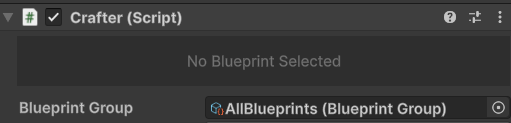
If no BlueprintGroup is assigned, the CraftingManager will default to using the Blueprints that have been assigned to it.
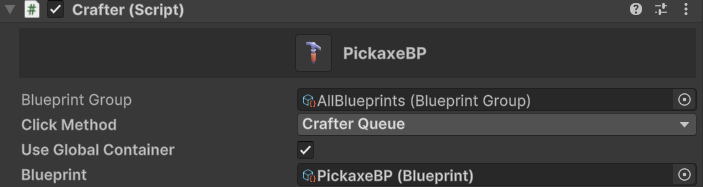
It should look something like this.
Its also worth noting that as with all the components, you can add as many meshes with colliders as you want, as long as they are child gameobjects.
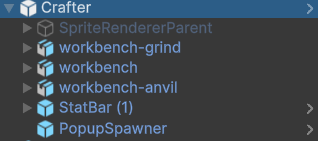
Everything else is free to explore, and is best to try out which settings work for your game – see below for what each setting does.
Settings
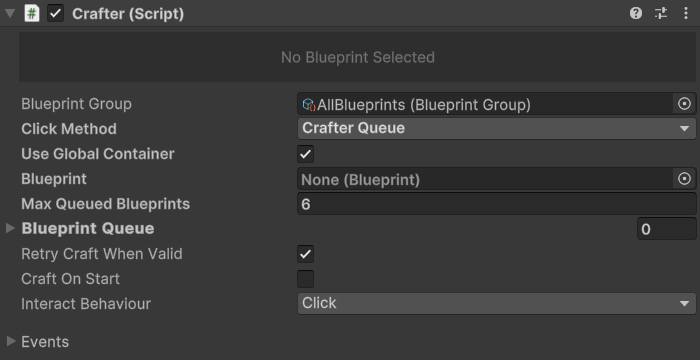
Blueprint Group
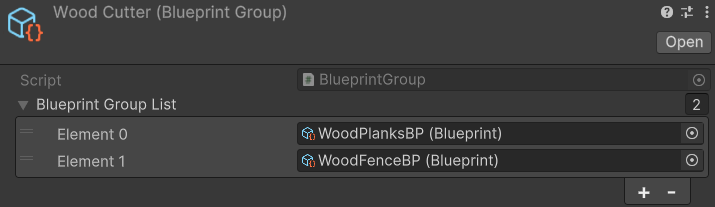
Assign a Blueprint Group which contains a List of Blueprints that the Crafter can choose to craft. This is particularly useful if say, you have a smelting machine, which you only want to smelt bars. Or a constructor with 2 material blueprints and so on. It can define what a Crafters actual purpose is in the game. If you just have straight Crafting from all Blueprints, create a Blueprint Group and add all of them to the group.
Example below could be a wood cutting machine
Click Method
Blueprint Select – Opens the Blueprint Select menu straight away to click and assign a Blueprint. This method has the Craft Repeating option available.
Crafter Queue – Opens the crafting queue menu. In this menu you can click the plus icons to then open the Blueprint Select menu to assign Blueprints back into the crafting queue. This method allows the player to crafting varying Blueprints depending on what they have picked. This method has the Max Queued Blueprints option available.
Use Global Container
If true, all ItemAmount logic such as checking if enough materials are available for the craft, to where the produced craft should be stored will go through the Global Storage Solution.
If false the above will go through the Item Container which must be assigned.
Blueprint
A serialised field to add in a Blueprint before runtime – if set, the crafter will initialise with that Blueprint ready to go – If Craft On Start is also true, then the Crafter will begin crafting. Note – Loading overwrites this logic.
Craft Repeating
If Click Method is Blueprint Select, then after finishing a craft, will immedietly attempt to craft another, until materials are no longer available.
Max Queued Blueprints
If Click Method is Crafter Queue, then set a maximum queue length, after that, the plus icon to add another Blueprint to queue will dissapear, and only reappear when there is enough room.
Blueprint Queue
If Click Method is Crafter Queue, then you can assign/view all of the Blueprints in the queue.
Retry Craft When Valid
If a craft could not happen because there were not enough materials, retry when there is enough.
If false, then the craft will just fail and nothing will happen.
Craft On Start
If a Blueprint is assigned, then the Crafter will immedietly begin at runtime.
Interact Behaviour
Click – Opens a crafting window depending on the Click Method chosen, see Click Methods above.
Disabled – No interaction will occur with this Crafter.
Events
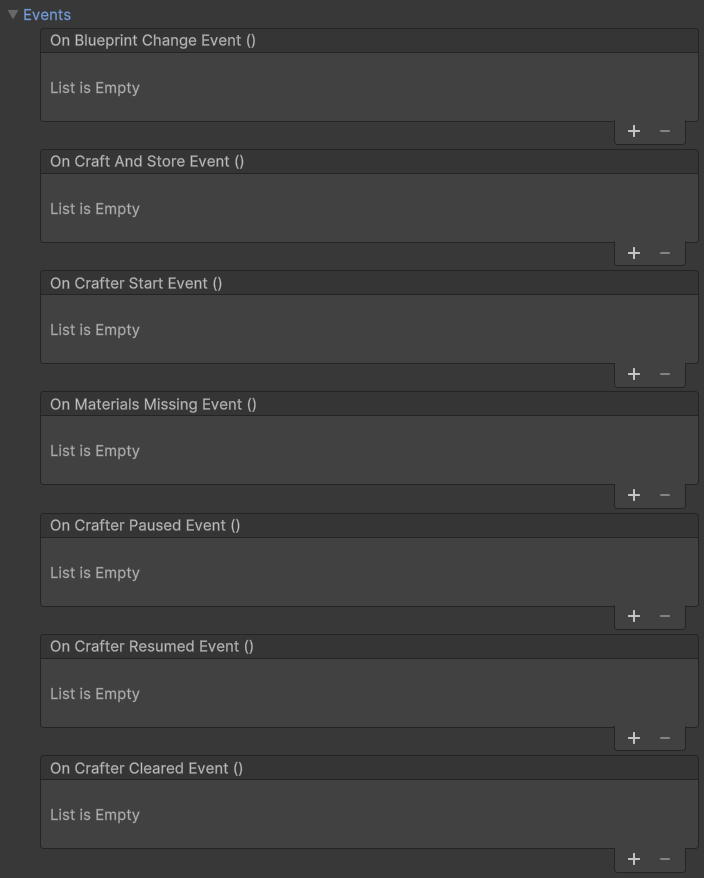
As with most of the core systems, there are key events you can hook into either via the editor, or via code.
On Blueprint Change Event
Triggers whenever Blueprint is changed, even to null.
On Craft And Store Event
Triggers when the crafter has produced the ItemAmount and has found found a place to store it.
On Crafter Start Event
Triggers when the craft is valid (has enough materials) and has begun.
On Materials Missing Event
Triggers when there is not enough materials for a craft.
On Crafter Paused Event
Triggers when the Crafter is paused.
On Crafter Resumed Event
Triggers when the Crafter is resumed.
On Crafter Cleared Event
Triggers when the Crafter is cleared, for example when selecting Clear from the Blueprint Select menu.
Saving and Loading
All Crafters that need saving must have the Saveable Object component added to it, which in turn will add a Unique ID component.
Check SaveManager to see how to do custom save and load back into your scene.
There a few different parts saved for Crafters. The current Blueprint Id, all the Blueprint Queue’s Blueprints id’s, the remaining craft time and if the Crafter was crafting on save. Any Crafters placed during runtime ARE saved however because this asset does not do any building logic, you would need to first of all build this asset back into the world – then get its save data (see this section for more details on how to do this) and then finally reinstate the Crafter as saved.
Loading is a little more complicated as crafters have a few moving parts. First of all it triggers a custom Coroutine for crafting from load which does not take or use materials and just straight crafts. It also starts the Timer class midway through. Destroyed Crafters before saving will be completly reinstated if they were placed in the editor. As the asset has nothing to do with building – all destroyed Crafters should be dealt with in how you define your placement/removal/loading logic. If placed in the editor, your loading logic could remove the gameobject if it was destroyed.
Extras
There are some nice complementary components for Cratfer, such as the Event Visual, Popup Spawner, Stat Bar and Info Icon.
Any extras can be drag and dropped as child to this component’s gameobject. For super UI control, add a UI Billboard to Stat Bar and Info Icon, or use the prefab for both StatBarInfoIcon in /prefabs/UI.
Event Visual
Animates the component using public functions.
Popup Spawner
Displays a popup of the crafted Item Amount that is produced.
Stat Bar
FillImage and Count of StatBar should be assigned to the Timer component. Displays the remaining time, and the progress bar.
Info Icon
Displays the current Blueprint that is being crafted.
Scripting
This section will cover scripting for developers wanting to hook into the system. Most public methods have a summary and info on what each parameter is for.
//Actions

//Triggers when the Blueprint is changed
public Action OnBlueprintChangeAction;

//Triggers when the craft has completed,
//Gives the ItemAmount that is produced, and the ItemContainer it is stored in
public Action<ItemAmount, ItemContainer> OnCraftAndStoreAction;

//Triggers when the Crafter has started the craft, after materials have been taken
public Action OnCrafterStartAction;

//Triggers when there are not enough materials for the craft
public Action OnMaterialsMissingAction;

//Triggers when the Crafter is paused
public Action OnCrafterPausedAction;

//Triggers when the Crafter is resumed
public Action OnCrafterResumedAction;

//Triggers when setting Blueprint to null or clearing the crafter
public Action OnCrafterClearedAction;

private void Start()
{
    crafter.OnBlueprintChangeAction += DoSomething;
    crafter.OnCraftAndStoreAction += (itemAmount, itemContainer) => DoSomething(itemAmount, itemContainer);
    crafter.OnCrafterStartAction += DoSomething;
    crafter.OnMaterialsMissingAction += DoSomething;
    crafter.OnCrafterPausedAction += DoSomething;
    crafter.OnCrafterResumedAction += DoSomething;
    crafter.OnCrafterClearedAction += DoSomething;
}

/// <summary>
/// Assigns a new blueprint to stop the current one, and start a new one. Pass null to stop crafting.
/// </summary>
public Blueprint Blueprint

/// <summary>
/// Opens one of the crafting menu's depending on the Click Method selected
/// </summary>
public void OnClick()

/// <summary>
/// Start the next craft depending on the ClickMethod chosen. If BlueprintSelect, start the craft routine again, if CrafterQueue start the next one in the queue and remove from the queue
/// </summary>
public void GetNextCraft()

/// <summary>
/// Clear the crafter to be empty again, including stopping the Craft routine, Refunding Materials if it was crafting, setting blueprint to null, and Initialising timer again
/// </summary>
public void ClearCrafter()

/// <summary>
/// If a blueprint is assigned, return all materials back to where they came from
/// </summary>
public void RefundMaterials()

/// <summary>
/// Checks to see if this Crafter can craft the currently assigned blueprint at this time.
/// Looks through all the materials of the blueprint, in either the InventoryManager storage system to check, or its assigned ItemContainer.
/// If not all materials can be fullfilled, will return false
/// </summary>
/// <returns>If the Crafter can craft the blueprint at this time</returns>
public bool CanCraft()

/// <summary>
/// Produces the Result of the blueprint and returns it
/// </summary>
/// <param name="blueprint">The blueprint to process and produce the ItemAmount from</param>
/// <returns>The Result ItemAmount</returns>
public ItemAmount ProduceItem(Blueprint blueprint)

/// <summary>
/// Adds the blueprint to blueprintQueue, if the current crafting blueprint is null, assign this also to blueprint and start crafting
/// </summary>
/// <param name="blueprint">The blueprint to add</param>
public void AddBlueprintToQueue(Blueprint blueprint)

/// <summary>
/// Removes a blueprint from the blueprintQueue at the given index in the list
/// </summary>
/// <param name="index">The index of the blueprint to remove</param>
public void RemoveBlueprintFromQueue(int index)

/// <summary>
/// Empty the blueprint queue
/// </summary>
public void ClearQueue()

//Saving and Loading
public object CaptureState()
public void RestoreState(object state)