
Introduction
This Manager class manages all world Input for the Resource And Production asset.
It can use the New Input System (for which you will find a ready made ActionMap in the root of the asset), or the Old Input System. It gathers input using raycasts in both 3d and 2d so you can use in both game types. It is also not consistant input, so only on clicking will trigger the raycasts for performance gain. The input also works using a touchscreen device.
There are various Control Mode presets which are explained below.
It handles the IPlayerInteractable interface, which hooks into the OnClick, OnHold and OnHoldRelease methods for the various components that implement it.
It also handles opening of the Inventory with a button and triggers various events that many other components hook into.
Setting up
There is a prefab Input Manager located in /prefabs/Managers or the main prefab for the ResourceAndProductionManager also contains this manager.
Setting up otherwise is as simple as adding the component to a gameobject.
Settings
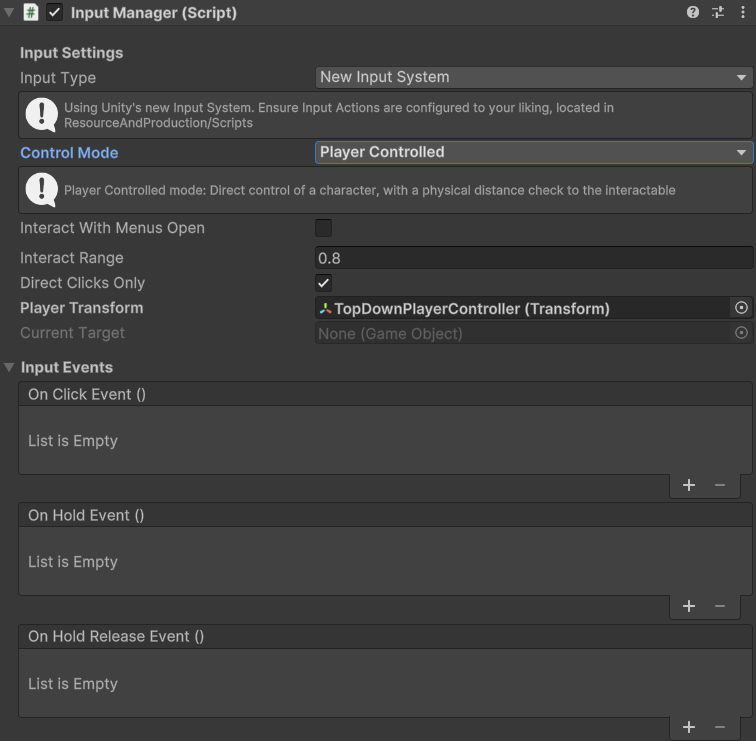
Input Type
New Input System – You are using the New Input System. Uses the callbacks set up in the ActionMap located in the root of the asset.
Old Legacy Input System – You are using the Old Input System. Uses Update logic to trigger input.
Control Mode
Control Modes are used to very basically judge what kind of game and input you need. Even if does not match completly, one of the 3 control modes should fit most styles just for input purposes.
Overseer – Camera pointing down at the world without a physical player. Raycasts straight from the Camera with an Infinite distance.
First Person – Camera in First Person, all Raycasting is done from the Camera using the Interact Range for distance.
Player Controlled – Camera pointing down at the world with a physical player. Raycasts straight from the Camera, but Interaction is based on how close the player is (Interact Range) and the Direct Clicks Only setting.
Interact With Menus Open
If enabled, Interacting will work while menus are open, otherwise Interaction is limited to when there are no menus open.
Interact Range
Only available in First Person and Player Controlled Mode.
In First Person Control Mode, this is the max raycast distance from the Camera.
In Player Controlled, this is the range from the player transform to the IPlayerInteractable objects.
Direct Clicks Only
Only available in Player Controlled Control Mode.
If enabled, when in the player transform is in range, the clicks must still be directly on the Interactable objects, otherwise, when in range, you can click anywhere to interact.
Player Transform
Only available in the Player Controlled Control Mode.
Assign the players transform to judge the distance to the interactable objects.
Current Target
For information purposes about which IPlayerInteractable object is current available to interact with based on the raycasts.
Events
On Click Event
Triggers when the InputManager detects a valid click.
On Hold Event
Triggers when the InputManager detects a Hold, and triggers every frame.
On Hold Release Event
Triggers when the InputManager detects a release.
Scripting
There are a few Actions to hook into as below
//Actions

//Triggers when there is movement through either the Horizontal axis or the moveAction
public Action<Vector2> OnMove;

//Triggers when there is movement through either the Vertical axis or the lookAction
public Action<Vector2> OnLook;

//Triggers when the InputManager detects a valid click
public UnityEvent OnClickEvent;

//Triggers when the InputManager detects a Hold, and triggers every frame
public UnityEvent OnHoldEvent;

//Triggers when the InputManager detects a release
public UnityEvent OnHoldReleaseEvent;

//Examples
public void Start()
{
    //Note all callback methods must have the same signature as the Action
    InputManager.Instance.OnMove += HandleMove;
    InputManager.Instance.OnLook += HandleLook;
    InputManager.Instance.OnClickEvent += Click;
    InputManager.Instance.OnHoldEvent += Hold;
    InputManager.Instance.OnHoldReleaseEvent += Release;
}